

- The team groups people by function or territory. It sets the recorder rules for internal meetings, and scorecard templates and field configurations apply by team.
- The role decides what the person sees in Settings.
- The seat type decides whether the Attention notetaker records their meetings.
Teams
To open the teams list, click your name at the bottom of the sidebar, then Settings. Under Member Management, click Teams. The list shows every team with its Managers and admins and its Members. Click the arrow next to a team to show its subteams, or use Search teams to find one.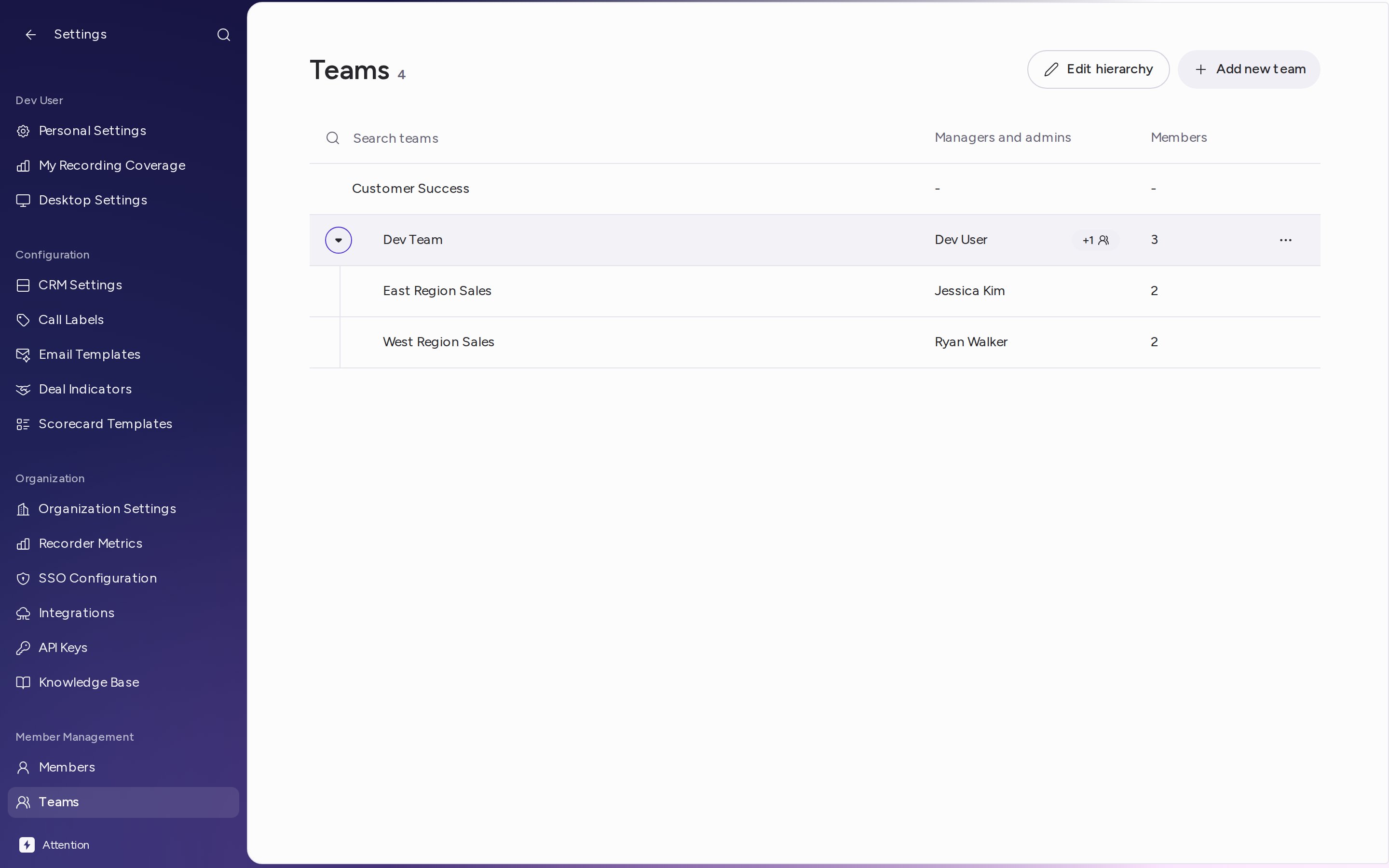
Create a team
- Click Add new team.
- Enter a Team name.
- To make it a subteam, choose its Parent team. Leave it empty for a top-level team.
- Click Create team.
Change the hierarchy
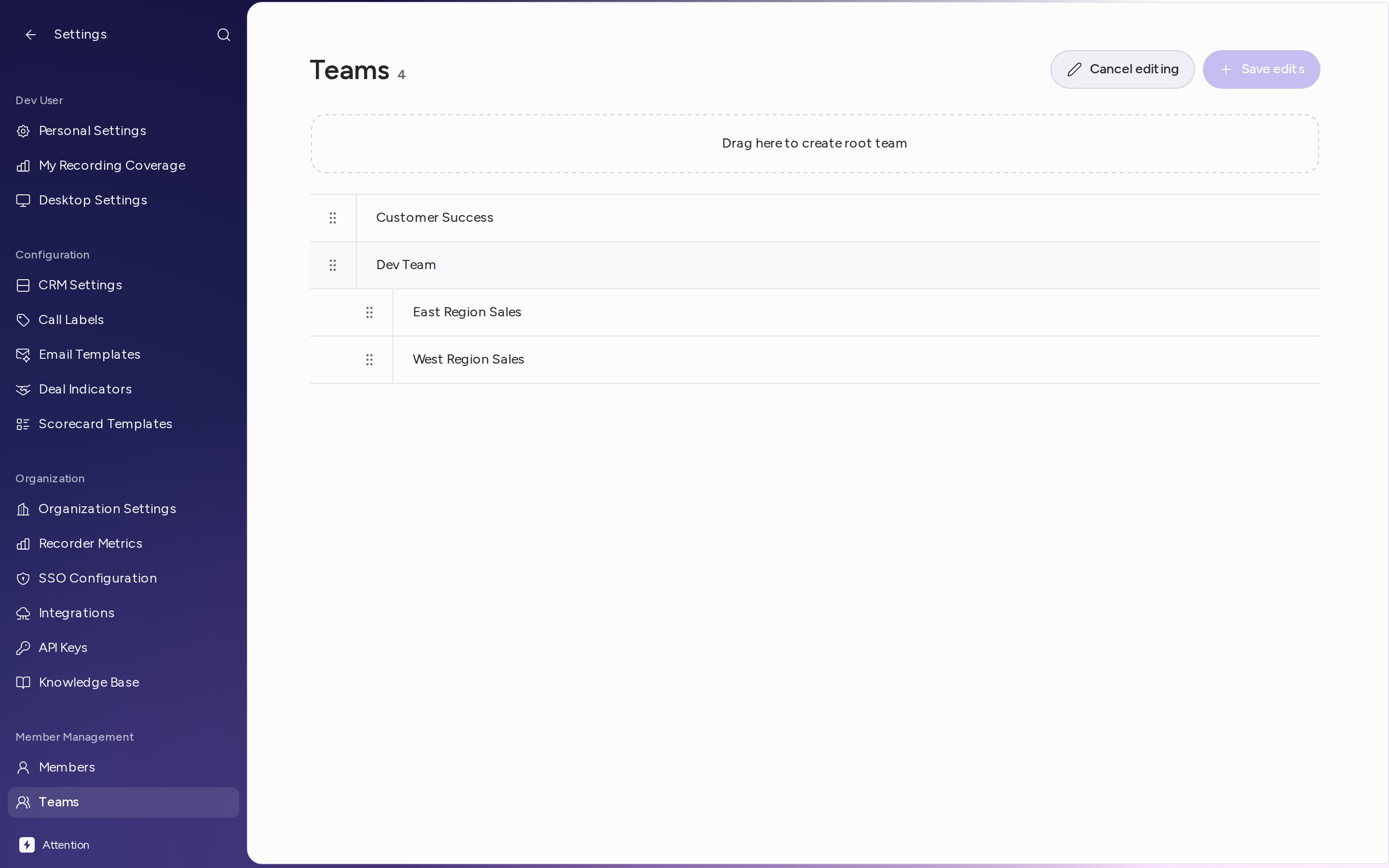
- Click Edit hierarchy.
- Drag a team onto another team to make it a subteam. Drag it onto Drag here to create root team to make it a top-level team. Its subteams move with it.
- Click Save edits.
Rename or archive a team
Hover a team in the list and click the ⋯ menu:- Edit opens Change team. Enter the new Name and click Change.
- Archive team archives it after you confirm. A team can be archived once it has no subteams and no members, so move them to other teams first.
Add or move members
Each person belongs to one team at a time. Open a team by clicking its name; the Members tab lists its members with their Email and Role. To add someone:- Click Add member.
- Search for the person under Find a member and click their name.
- Click the ⋮ menu on their row.
- Click Move to another team and choose the team.

Recorder settings
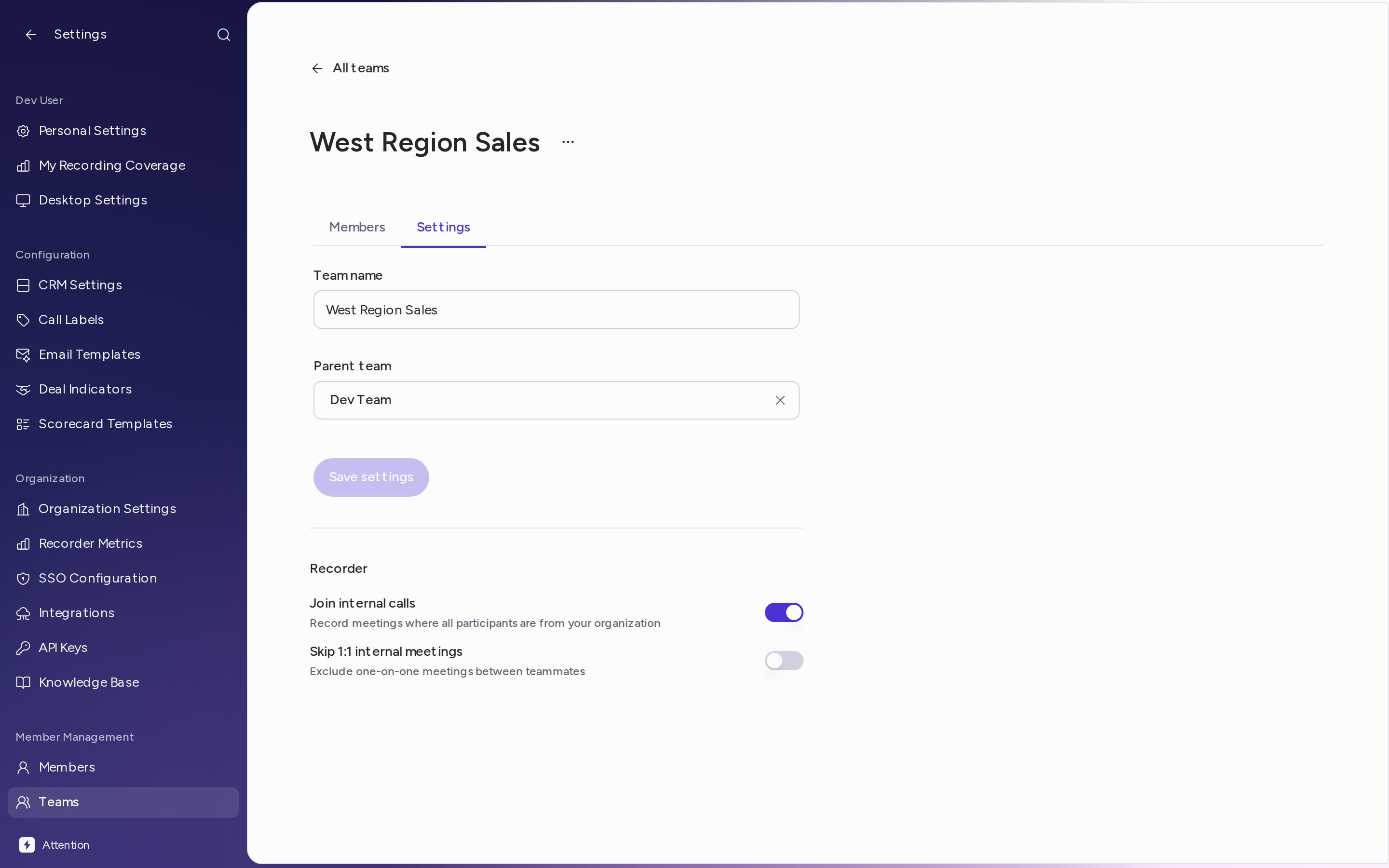
Each team has its own rules for internal meetings, the ones where everyone is from your organization. Open the team, choose the Settings tab, and find Recorder:- Join internal calls: on by default. Attention records meetings where all participants are from your organization.
- Skip 1:1 internal meetings: off by default. When it is on, Attention skips one-on-one meetings between teammates. It only applies while Join internal calls is on.
Roles
A new organization has three roles:- Admin sees the whole Settings menu. Besides their own settings, that includes Configuration (such as CRM Settings, Call Labels, Email Templates and Scorecard Templates), Organization (such as Organization Settings) and Member Management (Members and Teams).
- Manager sees their own settings under their name, such as Personal Settings, and Email Templates. Each team’s managers appear in the Managers and admins column of the teams list.
- Sales Representative sees the same Settings menu as a Manager.

Seats
There are two seat types:- Recording: the person connects their calendar and the Attention notetaker joins their meetings, following the auto-join rules.
- Listener: the person views, searches and works with recordings that are already in Attention. The notetaker doesn’t join their meetings.

Need help? Contact support@attention.com.