

What the integration does
Connecting Salesforce enables a 2-way sync:- Salesforce → Attention: Attention syncs the record types and fields you choose, so calls are matched to the right Salesforce records and you can filter and analyze calls by them.
- Attention → Salesforce: Attention writes the insights it extracts from your calls back to the Salesforce fields you map.
Before you start
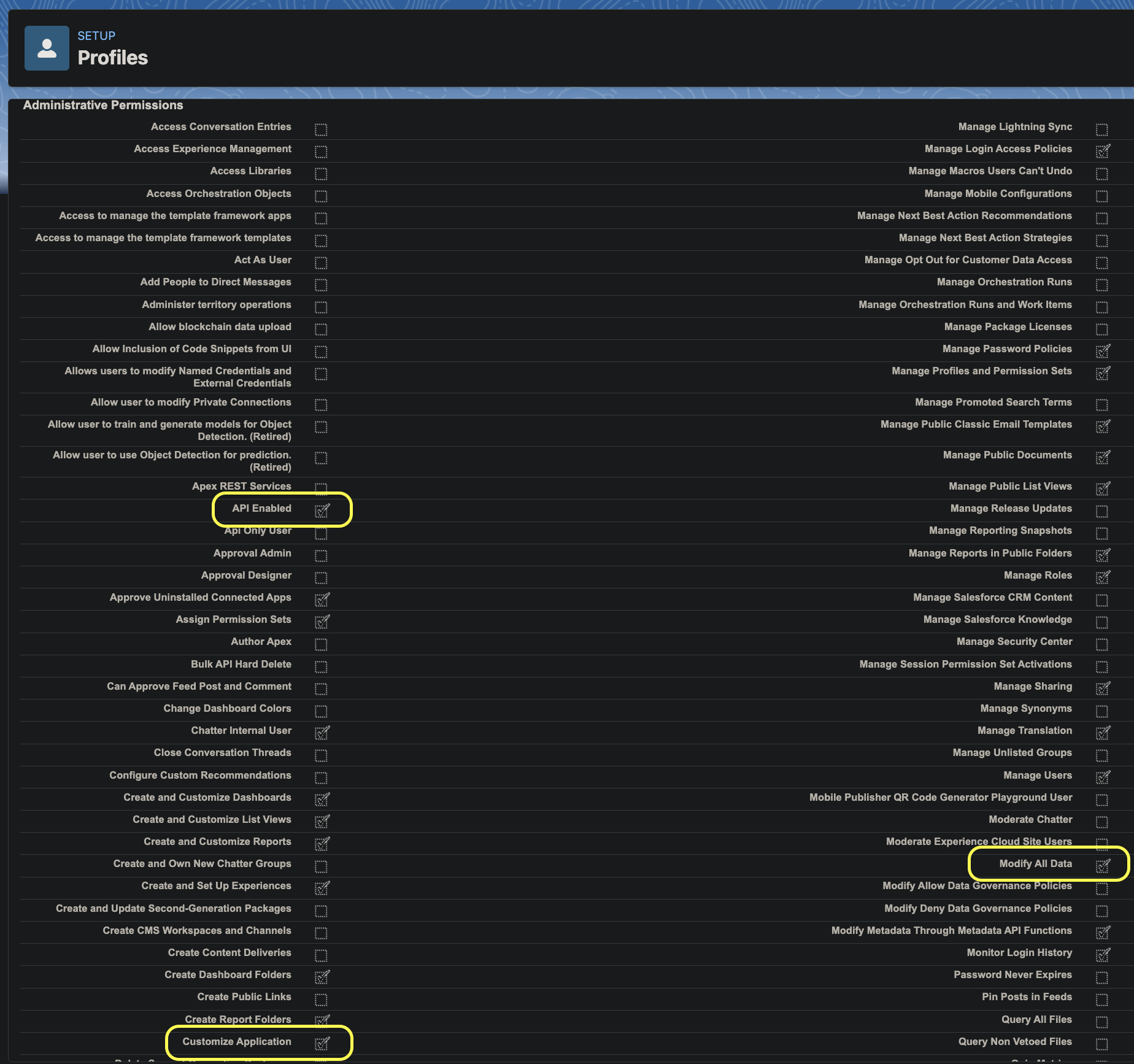
Attention acts with the permissions of the Salesforce user who connects it. That user’s profile, or a permission set assigned to them, needs these Administrative Permissions:- API Enabled
- Customize Application
- Modify All Data
- Open Setup.
- Under Administration, expand Users and select Profiles.
- Open the profile of the user who will connect Attention and click Edit.
- In Administrative Permissions, check API Enabled, Customize Application and Modify All Data.
- Click Save.
Connect Salesforce
- Log into Attention.
- Click your name at the bottom of the sidebar and select Settings.
- Select CRM Settings in the settings menu.
-
In the CRM integration & sync section, click Add your CRM.

-
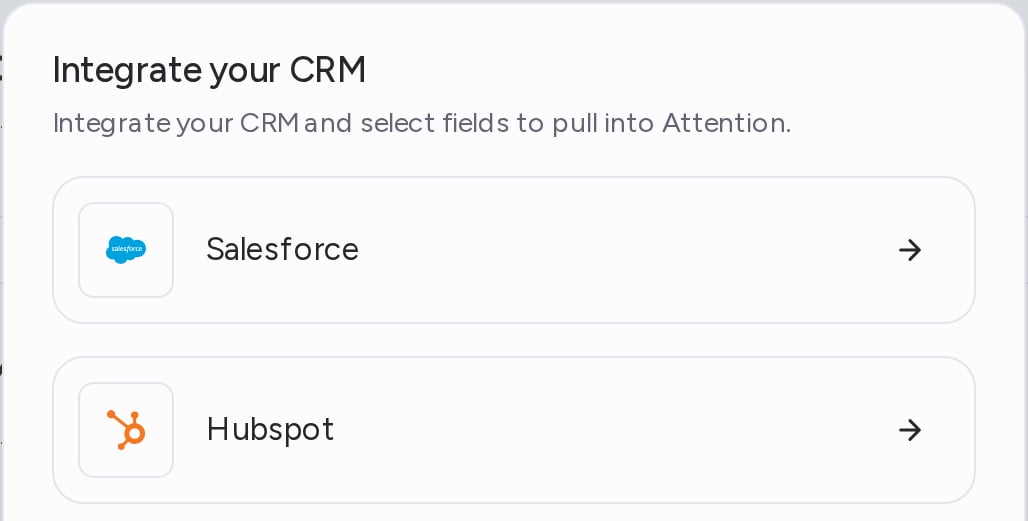
Select Salesforce in the Integrate your CRM dialog.
-
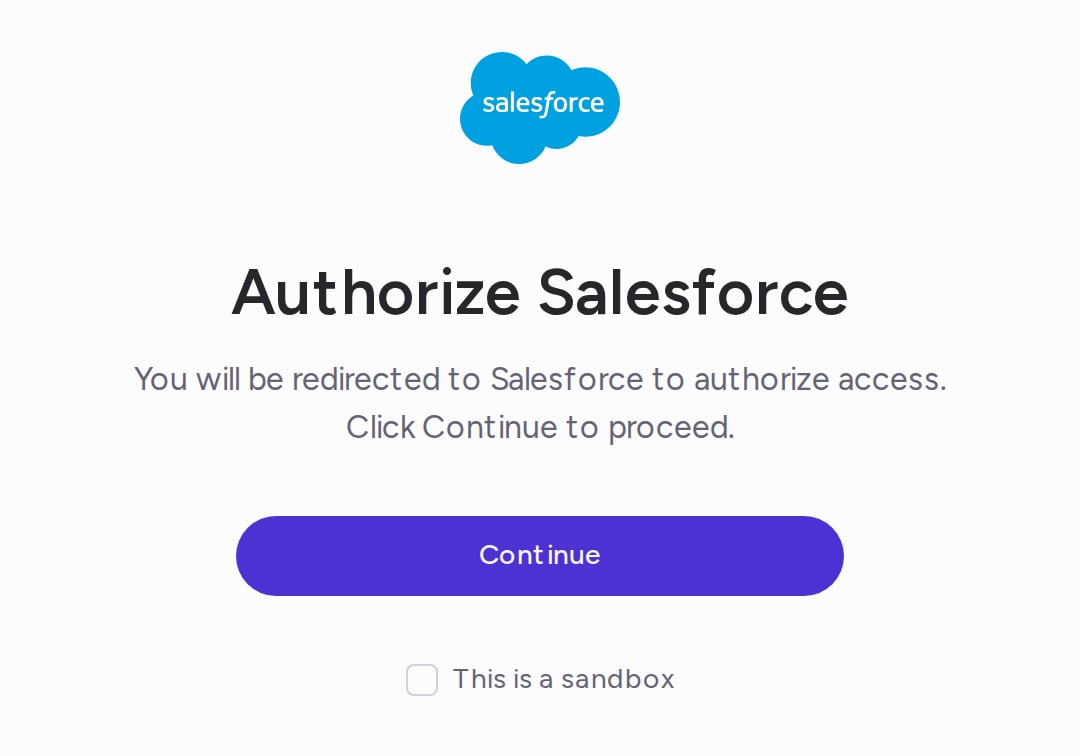
A new window opens on the Authorize Salesforce page. If you are connecting a Salesforce sandbox, check This is a sandbox. Click Continue.
- Log into Salesforce if prompted.
- Salesforce asks you to allow access for Attention SFDC Integration (see the scopes below). Click Allow.
- The window shows Salesforce authorization was successful and closes by itself. Back in CRM Settings, the Salesforce card now appears under CRM integration & sync.
Required Salesforce access scopes
Attention requests these OAuth scopes. Salesforce lists them on the Allow Access screen.Choose what to sync
A new connection doesn’t sync anything until you choose the record types and fields.- On the Salesforce card, click Select fields to sync.
- On the Manage Salesforce page, check each record type you want to sync and the fields to bring in with it. Fields a record type needs are already checked.
- Click Save.
Reconnect Salesforce
Reconnect when the connection stops syncing, for example after the connecting user’s password or permissions change in Salesforce. Your record types, fields and mappings stay as they are.- Go to Settings → CRM Settings.
- On the Salesforce card, open the menu and select Reconnect.
- In the window that opens, check This is a sandbox if it is a sandbox, and click Continue.
- Log into the same Salesforce organization and click Allow.
Disconnect Salesforce
- Go to Settings → CRM Settings.
- On the Salesforce card, open the menu and select Delete integration.
- Click Delete in the Delete integration dialog.
Support
Salesforce data stopped updating in Attention
Salesforce data stopped updating in Attention
Use Reconnect on the Salesforce card in Settings → CRM Settings.