

1. Open the Coaching tab
- Go to Conversations → All Calls and open a call.
- In the tabs next to the recording, click Coaching.
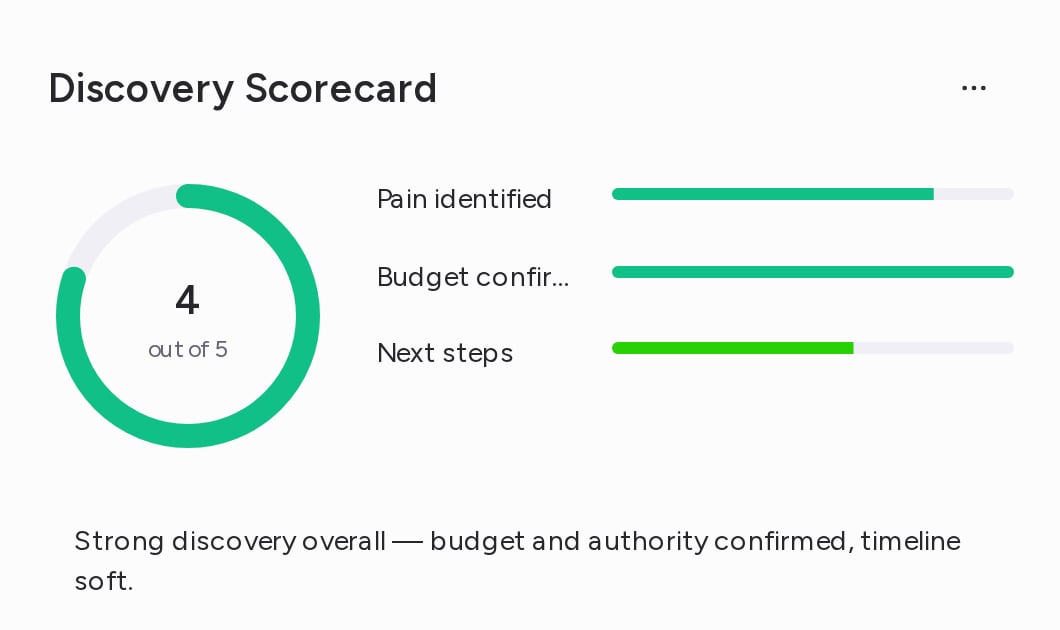
2. Read the results
The top of each scorecard gives you the overview:- Overall score: the circle shows the call’s score for the whole scorecard, out of the template’s maximum score.
- Field scores: a bar for each field of the scorecard. The first four are listed by name, and any others are grouped in one row below them.
- Summary: the main takeaways from the call for this scorecard.
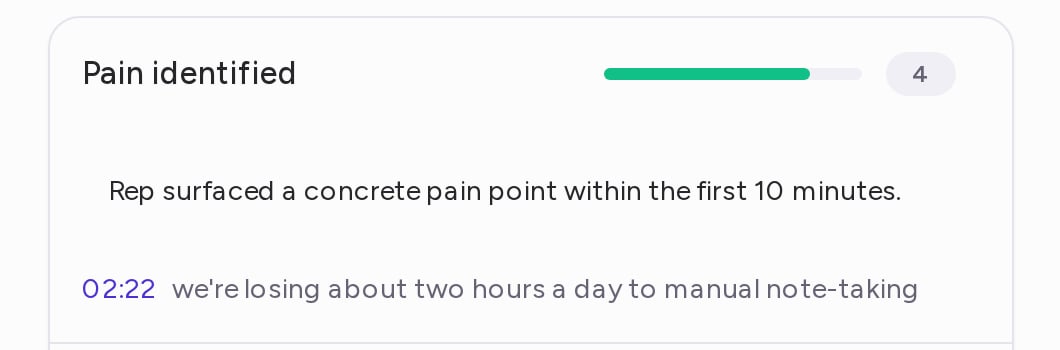
- its score, on the scale set in the template;
- a description that explains the score;
- quotes from the call that support it. Click the timestamp next to a quote to jump to that moment in the recording.
3. Edit scores and descriptions
To correct a scorecard on a call:- Click the ⋯ menu next to the scorecard’s name, then Edit scores.
- Drag a field’s slider to change its score, and edit the text below it to change its description. You can also edit the scorecard’s summary.
- Click Save, or Cancel to discard your changes.
4. Delete a scorecard from the call
- Click the ⋯ menu next to the scorecard’s name, then Delete scorecard from call.
- Click Delete to confirm.
Troubleshooting
The Coaching tab shows No scores found for this conversation
The Coaching tab shows No scores found for this conversation
No scorecard template applies to the call. A template scores the calls of the teams and call tags you pick on it, starting with the calls processed after you save it. Internal calls aren’t scored. To check a template’s teams and tags, see Build a Scorecard Template.