

1. Create a field configuration
- Click your name at the bottom of the sidebar, then Settings.
- Click CRM Settings.
- In CRM field configurations, click New configuration.
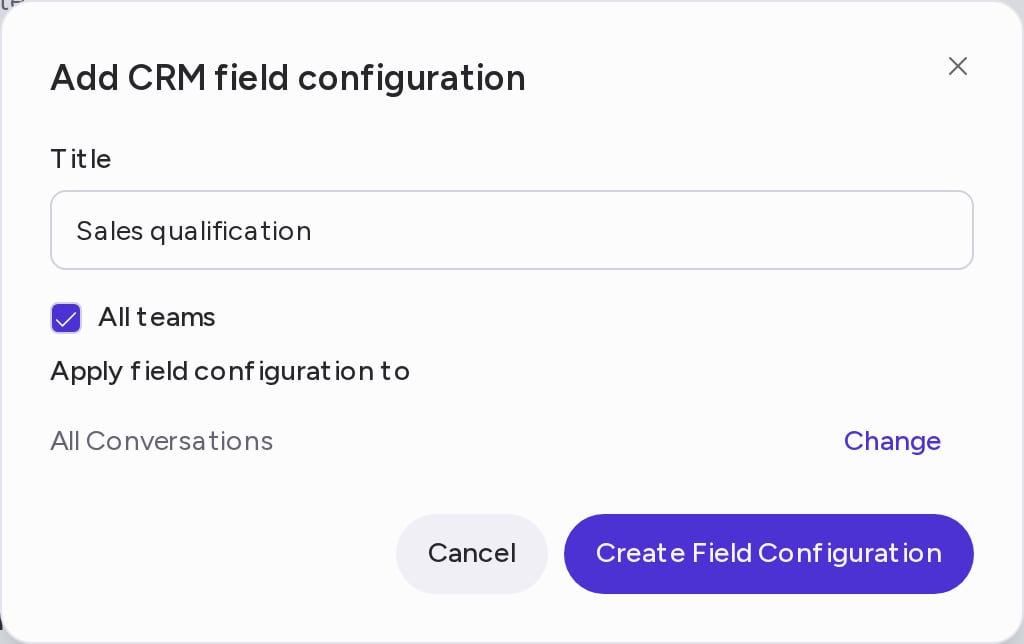
- In Add CRM field configuration, enter a Title.
- Choose the Teams whose calls this configuration covers, or check All teams.
- Under Apply field configuration to, the default is All Conversations. To use the configuration only on some calls, click Change, choose whether calls must match all or any of the call tag values, select the values and click Save. Call tags come from your call labels.
- Click Create Field Configuration.
2. Add a field
- On the configuration page, click Add Field.
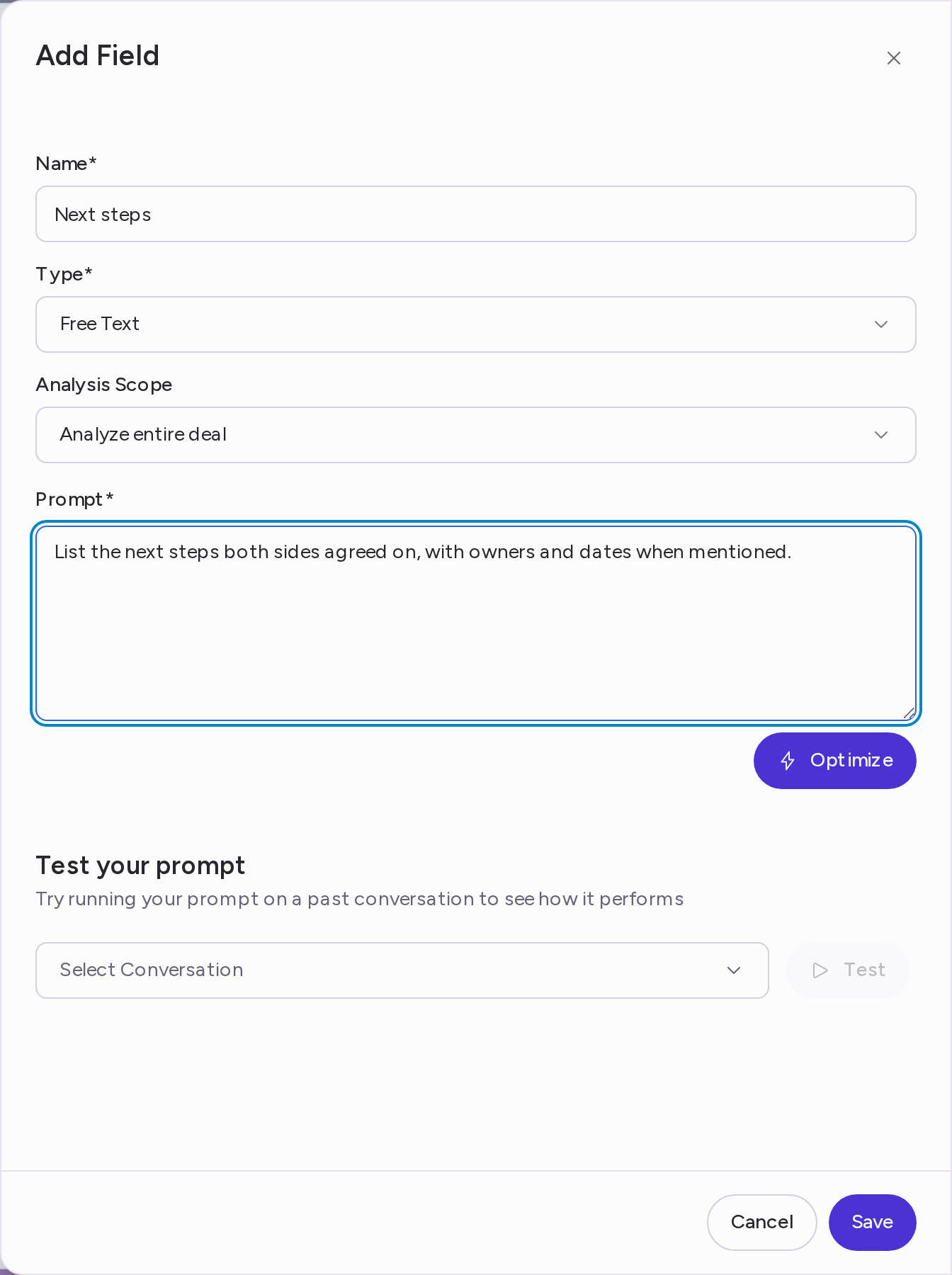
- Enter a Name for the field.
- Choose a Type:
- Free Text: any text answer.
- Picklist: a set of options. Under Picklist Details, enter each option on its own line, using the same values as your CRM picklist. Check Multi-select if more than one option can apply.
- Choose an Analysis Scope:
- Analyze entire deal: reads every call linked to the deal. If no deal is linked, only this call is analyzed. This is the default.
- Analyze conversation: reads only this call.
- Write the Prompt: tell Attention what to pull from the call and how to format the answer. Click Optimize to have Attention improve it.
- Under Test your prompt, pick a past conversation and click Test to see the result.
- Click Save.
3. Send the fields to your CRM with a workflow
Connect your CRM first, as described in Salesforce or HubSpot.- Go back to CRM Settings.
- In Connect Attention fields to CRM fields with workflows, click Add workflow.
- Enter a Name and click Create. The workflow opens, already turned on and with a trigger as its first step.
- Click the trigger step to open Select Workflow Trigger, then choose when the workflow runs:
- User exports Fields from Attention: reps review the values in the call’s CRM tab and click Update Records to send them. This is the default.
- Conversation finished: values are sent automatically when the call finishes, with no action from the rep.
- Conversation finished or User exports Fields from Attention: values are sent automatically, and reps can also send them from the CRM tab.
- Click + below the trigger, choose your CRM, then Update … Fields (for example, Update Salesforce Fields).
- In Update Platform Record, choose the Connection, the Object to update (for example, an opportunity) and the Field Configuration you created.
- Under Field Mappings, click + for each field. Pick the CRM field under Connection Field and the matching Attention field under Attention Field.
- Click Add.
4. See it in action
After a call, Attention fills in every field in the configuration. You’ll find the values in the call’s CRM tab.- With Conversation finished, your CRM is updated with no rep action.
- With User exports Fields from Attention, reps check the values and click Update Records.
Need help? Contact support@attention.com.